Coming soon to the Mac App Store
Every screenshot.
Instantly searchable.
Bunny lives in your menu bar, watches the folders you choose, and fetches any capture the moment you need it — by what’s actually in it. Private by design: your key, or fully on-device.

Find them anywhere you already look
Search what’s in them
The error message, the receipt total, the restaurant name — Bunny reads every screenshot and indexes the text and meaning, not just the filename.
Private by design
Analyze with your own OpenAI key, or switch to a local model where no screenshot, text, or metadata ever leaves your Mac. No accounts. No analytics.
Tidy, safely
Descriptive filename suggestions for every capture. Renames happen only with your approval — and they’re undoable. Bunny never deletes or uploads your files.
How it works
Three steps. Then it just runs.
Watch
Point Bunny at the folders where screenshots land. It waits quietly in the menu bar and notices each new capture.
Understand
A vision model reads each one — a title, a description, the visible text, and tags. Cloud with your key, or fully on-device.
Find
Search by what’s inside, from the menu bar, the Library window, or macOS Spotlight. Your agents can search it too.
Names that actually say something
Bunny suggests a descriptive filename for every capture. You approve — and it’s undoable.
Screenshot 2026-06-11 at 9.42.01 AM.pnglamp-online-order.pngThe library
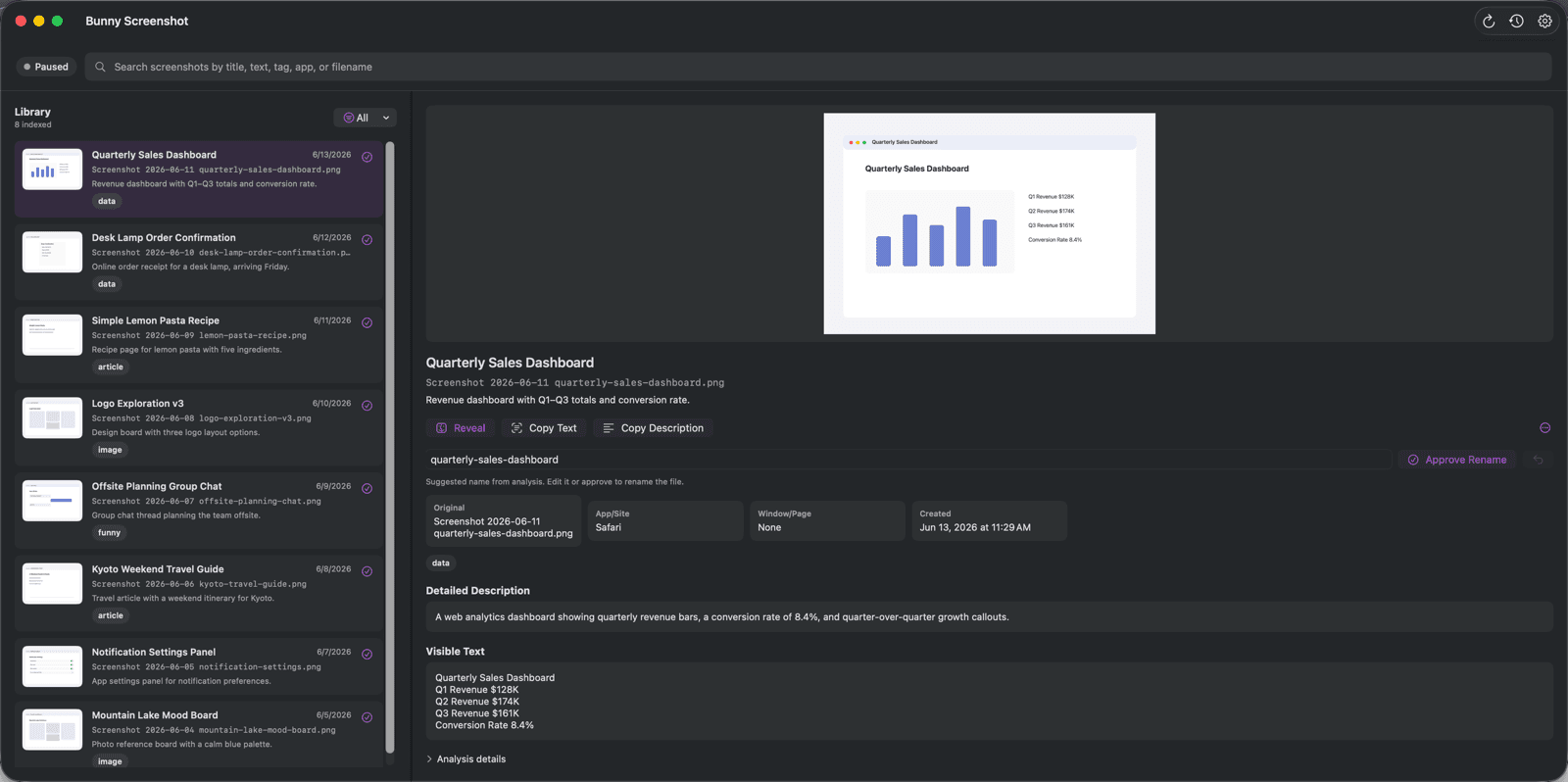
Your screenshot graveyard, resurrected
Bunny watches the folders where screenshots land and quietly builds a searchable library: an AI title, a description, extracted text, and tags for every capture. Search by any of it — from the menu bar, the Library window, or macOS Spotlight.
The privacy dial
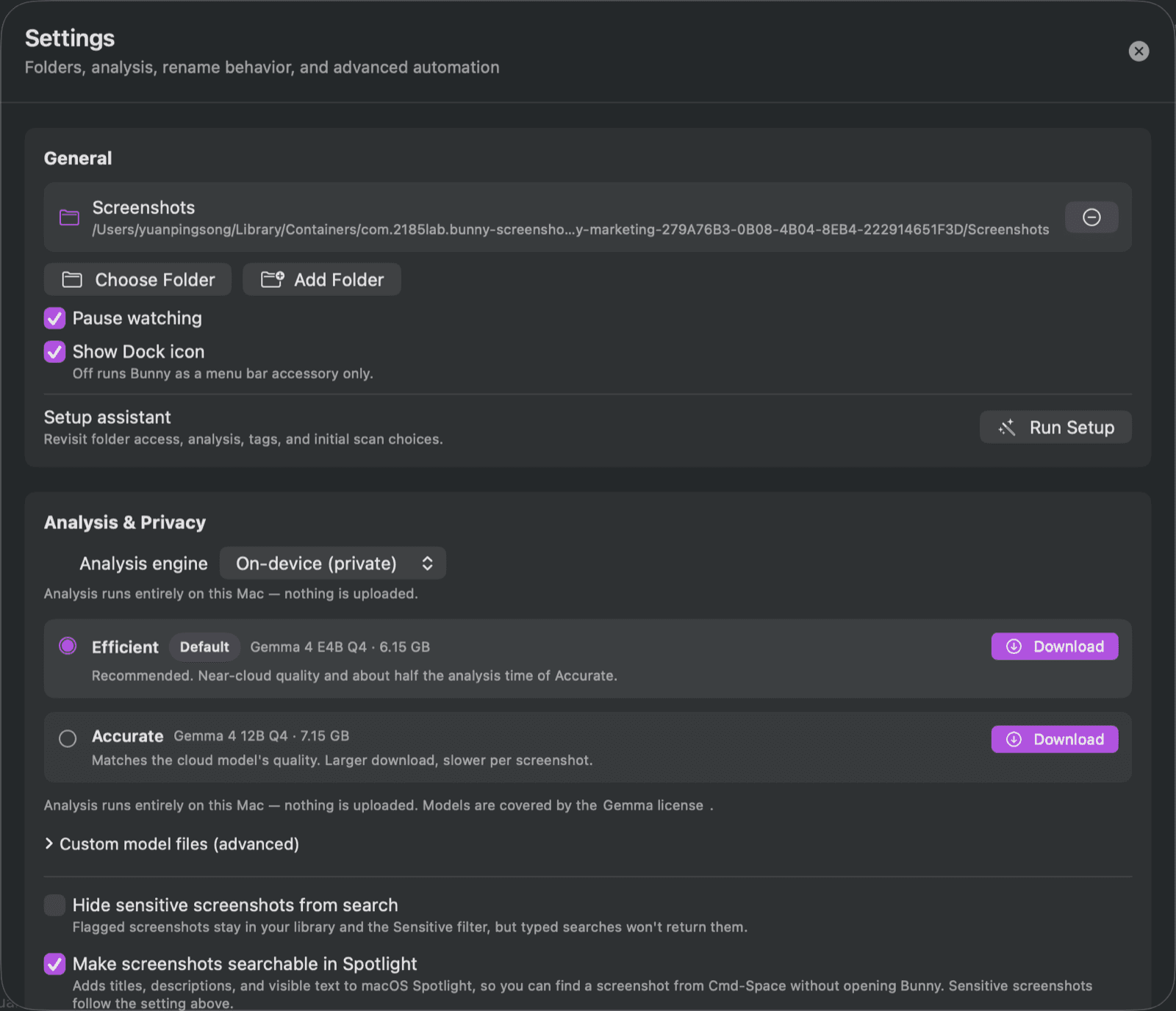
Cloud or 100% on-device. You choose.
Use OpenAI cloud models with your own API key — or go fully on-device with a local model and watch nothing leave your Mac. Sensitive screenshots can be hidden from search, in the app and in Spotlight. Switch engines anytime.
The receipts
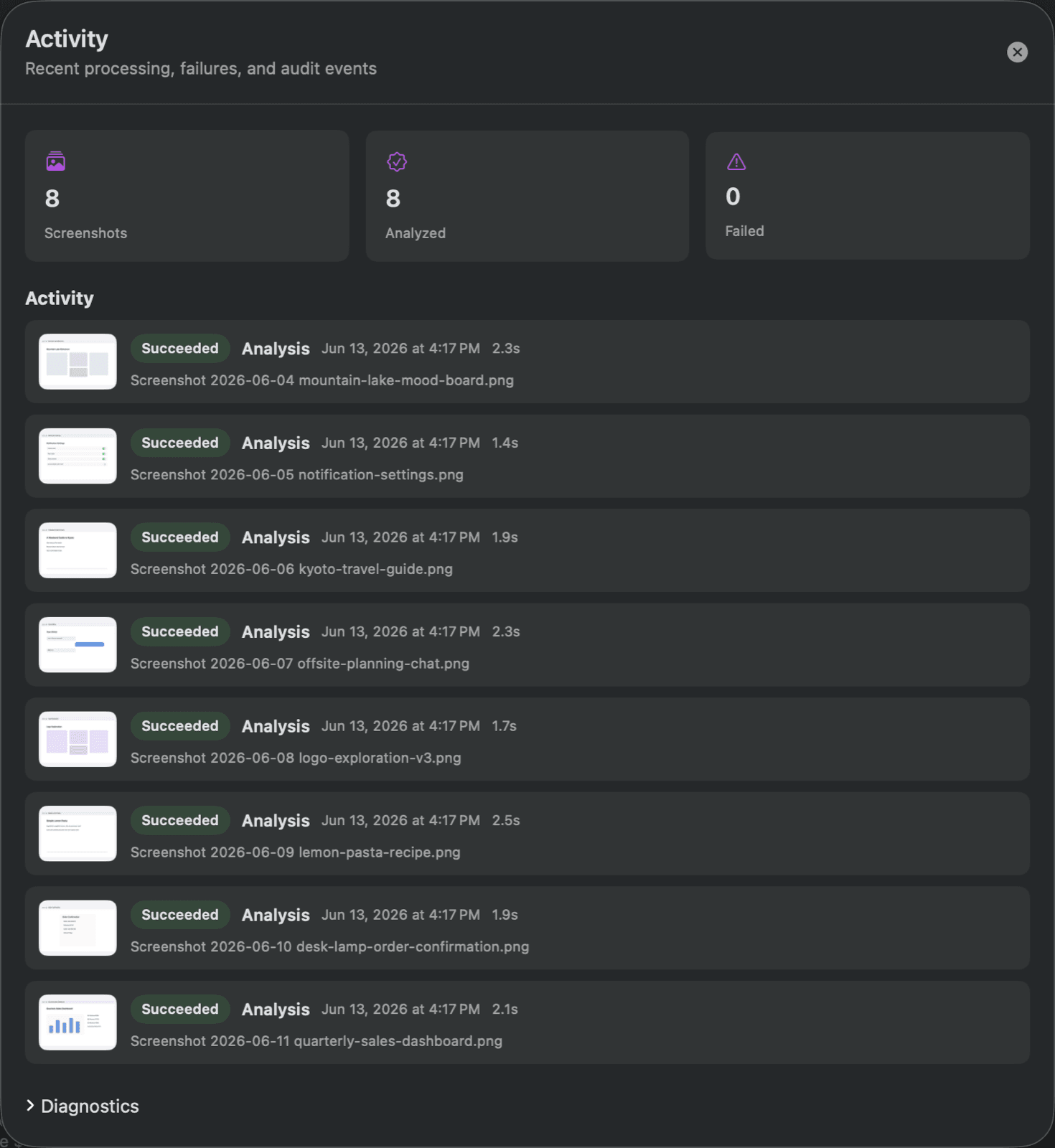
Trust, with a paper trail
A clear Activity timeline shows exactly what was processed, when, and how long it took — plus an audit log of every change. If something fails, you see why, and retry is one click.
localhost · no accounts · no analytics
Local-first, on principle.
Your index stays home.Metadata, search, and the audit log live in a local database on your Mac — there is no Bunny cloud.
Your models, your call.Cloud analysis uses your own OpenAI key, only after explicit consent. Or download a local model and unplug entirely.
Nothing watching you.No accounts, no analytics, no tracking — the only network calls are the ones you choose.
Questions, answered
Do I need an OpenAI account?+
Only for the cloud engine, where you bring your own API key. The on-device engine needs no account and no key — it runs a downloadable local model (≈6 GB, removable anytime) on Apple silicon.
Where does my data live?+
On your Mac. The index, metadata, and audit log are local. With the on-device engine, analysis is local too. There is no Bunny cloud and no analytics.
Can it find screenshots from Spotlight?+
Yes — analyzed titles, descriptions, and visible text are added to the macOS Spotlight index on your device, so Cmd-Space finds your screenshots. It’s a toggle, and turning it off removes the entries.
Will it rename or move my files?+
Never on its own. Bunny suggests descriptive filenames; renames wait for your approval and can be undone. Nothing is ever deleted or uploaded.
What about my AI tools?+
An optional local MCP server (off by default, localhost-only, authenticated) lets your agents search your screenshot library — your data stays on your machine.

Give your screenshots a memory.
Bunny Screenshot is coming soon to the Mac App Store. Quietly indexing, fully private, ready when you are.